
What an AI assistant can do in Growin CRM
When you connect Claude or another AI assistant to Growin CRM, you can work with your CRM by asking in plain language. This article lists what the assistant can read and change, with example requests you can copy.
Sign-in and permissions
- Each user connects with their own Growin CRM account and chooses one team for the connection.
- The assistant sees and changes only the data you can access in the CRM, with the permissions of your role in that team. A contact you cannot see in the CRM is not found by the assistant either.
- Before the assistant changes anything, your assistant app asks you to approve the action.
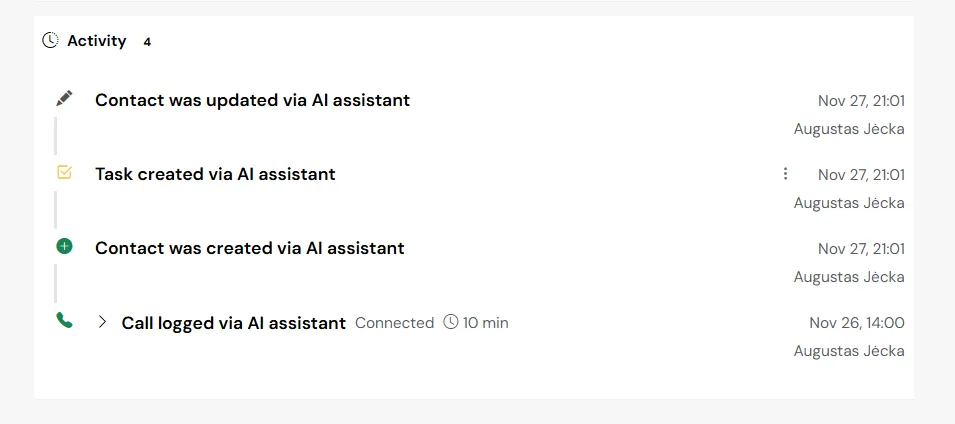
- Changes made by the assistant appear in the contact’s activity history marked via AI assistant, so your team can see where they came from.
Contacts
- Find a contact by name, phone number, email address or company, and list contacts with filters such as lead status, last activity or deal likelihood.
- See a contact’s details, activity history, comments and tasks.
- Create a new contact or update an existing one, including the team’s custom fields.
- Add a comment to a contact and tag team members.
- Assign a contact to a team member or remove the assignment.
Try: “Find Jonas Jonaitis and show his open tasks”, “Which of my clients has nobody contacted for two weeks?” or “Add a comment to UAB Pavyzdys: sent the quote, call back on Monday”.
Lead statuses
- See the team’s list of lead statuses in pipeline order.
- Change a contact’s lead status. The change shows in the activity history. Moving a contact to a closed status needs a closure reason, and the assistant asks you for it.
- Create a new lead status or edit an existing one. This changes the pipeline for the whole team and needs permission to edit team settings.
Try: “Move Ona Petraitienė to Qualified” or “Add a Proposal sent status after Contacted”.
Tasks
- Create a task, optionally about a contact, with a due date and priority, and assign it to team members or remove an assignee. Assignees get the usual notification, and the task syncs to Google Calendar like any CRM task.
- Review task drafts suggested from call summaries, edit them, approve them (which creates the task) or reject them.
Try: “Create a task to send the contract to Jonas on Friday at 10:00” or “Show my task drafts from yesterday’s calls”.
Calls
- Read call summaries: what was discussed, the suggested next step and the deal likelihood.
- Log a call with its outcome, notes and duration.
- See call drafts that are waiting for their recording, and get a new upload link when the old one has expired.
Call summaries, task drafts from calls and call drafts waiting for a recording need the call recording and summary (audio processing) feature in your Growin CRM plan.
Try: “What did we discuss in the last call with UAB Pavyzdys, and what’s next?” or “Log a call with Ona: connected, 10 minutes, she wants a demo next week”.
Team and settings
- See the team’s members, for example to assign or tag someone.
- See the team’s custom contact fields.
- Tell you which team the connection works in, and give you a link to switch to another of your teams.
Plan your day
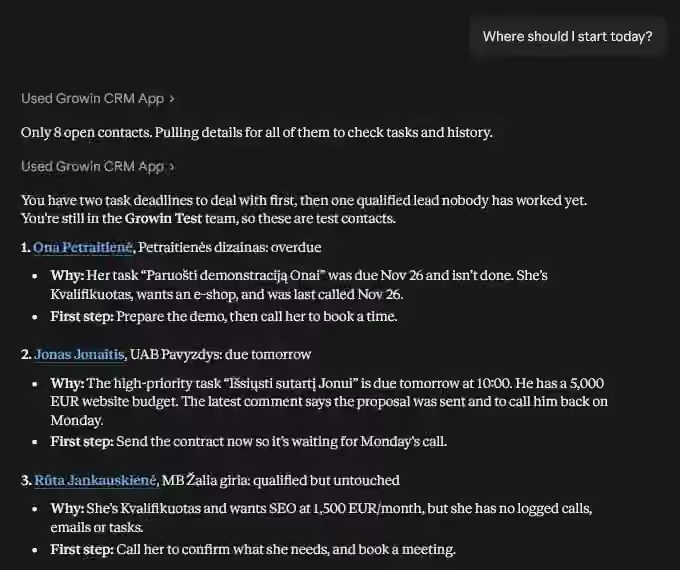
Ask “Where should I start today?”. The assistant looks at your open contacts, overdue tasks, recent calls and deal likelihood, and suggests a short ranked list of clients with a first step for each. Deal likelihood is an estimate, so check the suggestions against what you know.
[VIDEO NEEDED (optional)] 30–60 second recording without sound: asking Claude about a demo contact, approving a lead status change, and the change appearing in the CRM.
What the assistant cannot do
- Work in more than one team at a time. Switch the team to work in another one.
- See or change data your role does not allow in the CRM.
- Play call recordings. It reads summaries only.
Still need help? Email us at support@growin.lt