
Connect an email account with SMTP
Connect any email account that supports SMTP, such as Hostinger, cPanel hosting, Outlook / Office 365 or your own mail server, to send emails to contacts from your business address. You can add several accounts and choose which one is the default sender.
Using Gmail? Connect Gmail directly instead. It needs no password and supports open tracking.
Before you start
Get these details from your email provider or hosting control panel:
- SMTP host, for example
smtp.hostinger.com - Port: 465 (SSL) or 587 (TLS)
- Username, usually your full email address
- Password for the mailbox, or an app password if your provider requires one
Email is a personal integration: the account is tied to your own user. If you belong to several teams, switch to the team you are working in first.
Add an SMTP account
- Open Teams in the menu and select your team, then open the Integrations tab. On a phone, tap Integrations in the quick actions.
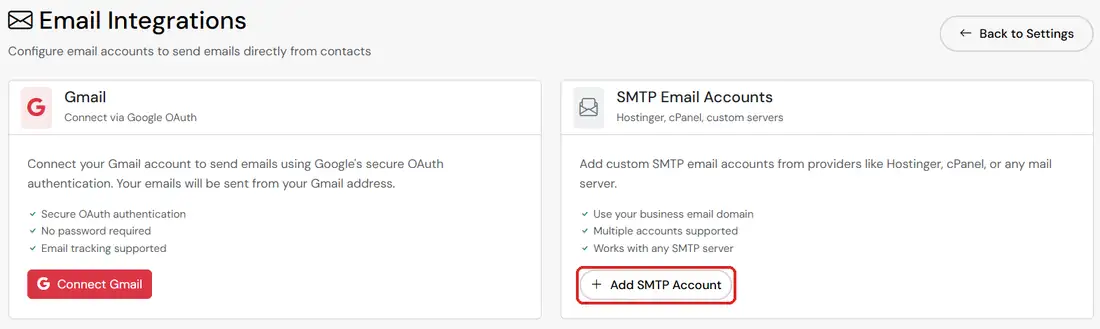
- Under Personal Integrations, find Email Integrations and click Configure.
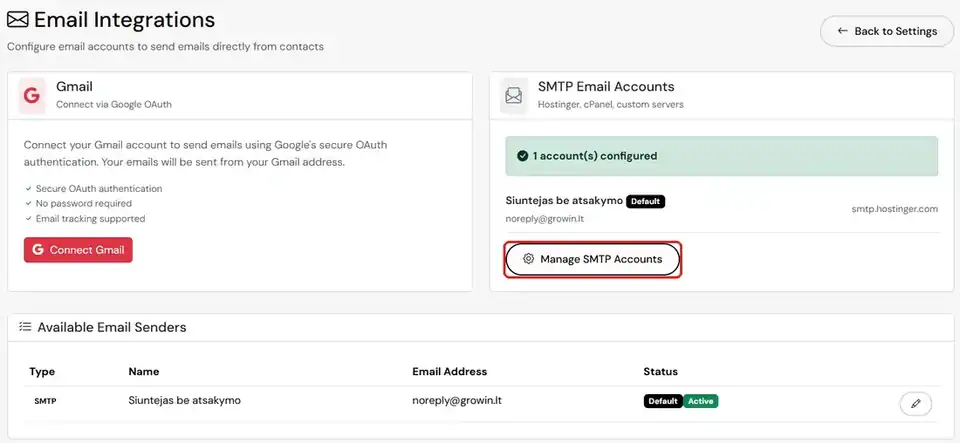
- In the SMTP Email Accounts card, click Add SMTP Account (or Manage SMTP Accounts if you already have one).
- Click Add Email Account.
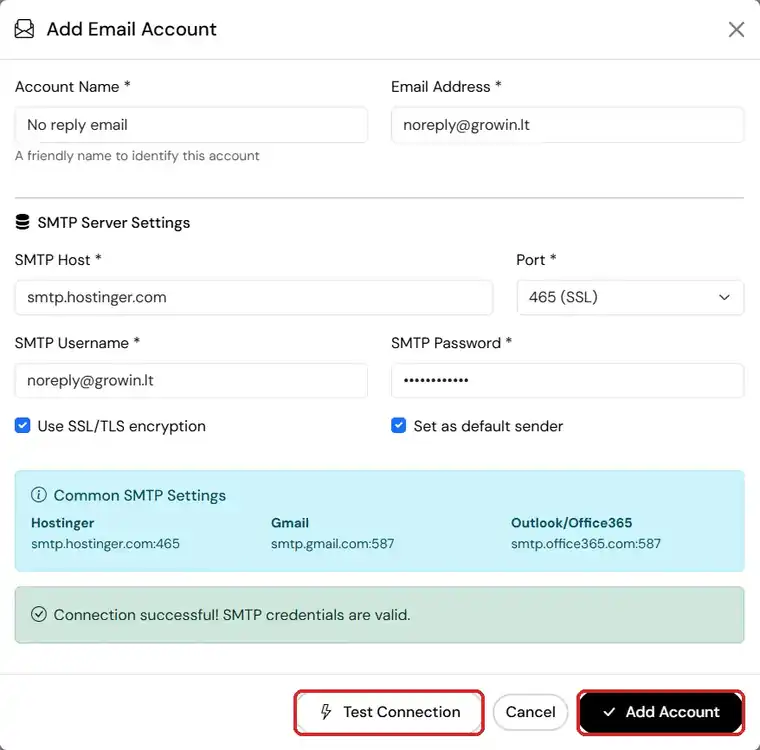
- Fill in Account Name (a label only you see, such as “Work Email”) and the Email Address you send from.
- Under SMTP Server Settings, enter the SMTP Host, choose the Port, and enter the SMTP Username and SMTP Password.
- Keep Use SSL/TLS encryption turned on for ports 465 and 587.
- Tick Set as default sender if this should be the address used by default.
- Click Test Connection. When the test succeeds, click Add Account.
[VIDEO NEEDED (optional)] 30–60 second screen recording of adding an SMTP account and testing the connection, without sound. Hide the password.
The account now appears under Available Email Senders and you can choose it when you send an email.
Common SMTP settings
| Provider | SMTP host | Port |
|---|---|---|
| Hostinger | smtp.hostinger.com | 465 (SSL) |
| Gmail | smtp.gmail.com | 587 (TLS) |
| Outlook / Office 365 | smtp.office365.com | 587 (TLS) |
| cPanel hosting | Usually mail.yourdomain.com | 465 (SSL) |
Gmail over SMTP: Google does not accept your normal password here. Turn on 2-Step Verification in your Google account and create an App Password, then use it as the SMTP password. Connecting Gmail directly is usually easier.
Manage your SMTP accounts
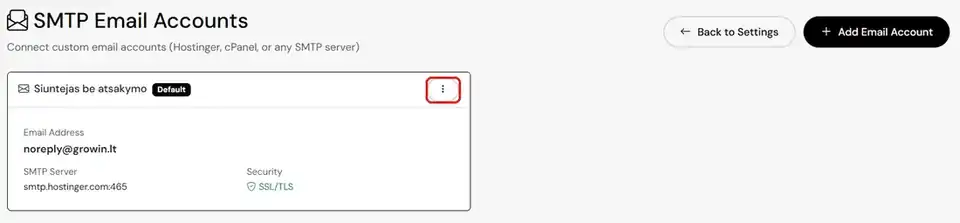
Open Email Integrations > Manage SMTP Accounts. The default account is marked Default. Click the ⋮ menu on an account to:
- Set as Default to make it the default sender.
- Test Connection to check that the saved settings still work.
- Edit its settings. Leave the password field empty to keep the current password.
- Delete it. This cannot be undone.
Troubleshooting
The connection test fails with an authentication error
Check the username and password. Most providers expect the full email address as the username. Gmail and some Microsoft 365 accounts need an app password instead of the normal one.
The connection test times out
Check the host and port. Port 465 uses SSL and port 587 uses TLS; both need Use SSL/TLS encryption turned on. Avoid port 25: it is unencrypted and often blocked.
Emails are sent but land in spam
Ask your email provider or domain administrator to check the SPF, DKIM and DMARC records for your domain.
Still need help? Email us at support@growin.lt