Connect your Gmail account
Connect your Gmail or Google Workspace account to send emails to your contacts directly from Growin CRM. Emails go out from your own Gmail address, and Growin CRM can track when they are opened.
Gmail connects through Google’s secure sign-in (OAuth), so you never type your Gmail password into the CRM. If you use a different email provider, connect it with SMTP instead.
Before you start
- You need a Gmail or Google Workspace account.
- Email is a personal integration: it is tied to your own user and only affects the emails you send. Each team member connects their own account.
- If you belong to several teams, switch to the team you are working in first. Integrations can only be managed for your active team.
Connect Gmail
- Open Teams in the menu and select your team. On a phone, tap Integrations in the quick actions instead.
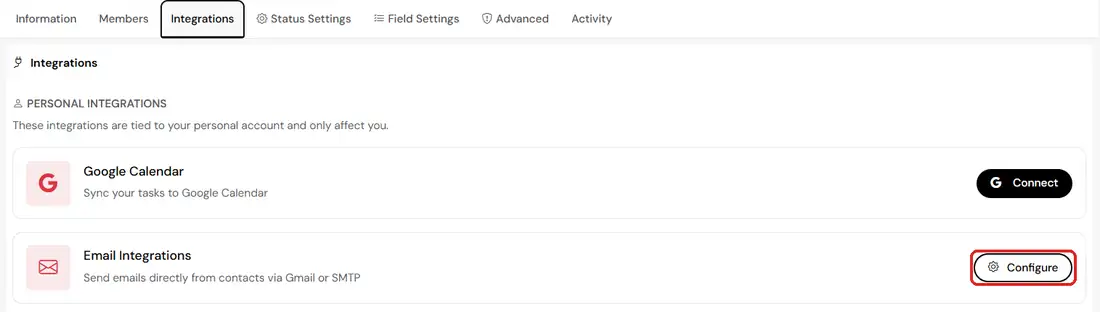
- Open the Integrations tab.
- Under Personal Integrations, find Email Integrations and click Configure.
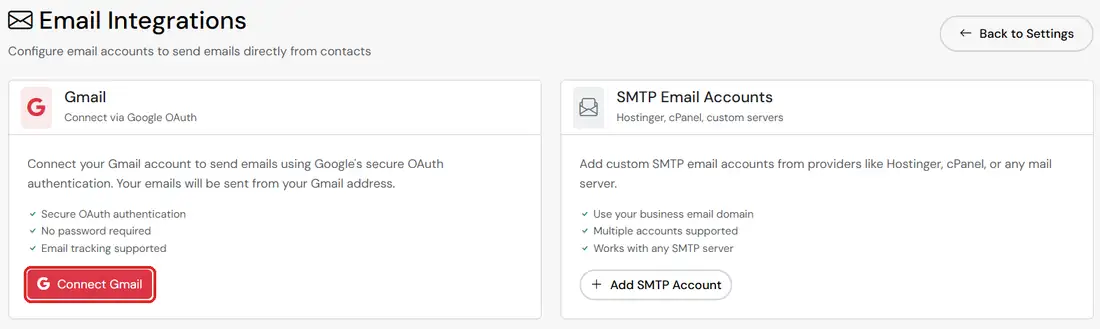
- In the Gmail card, click Connect Gmail.
- Sign in to your Google account in the window that opens and allow the requested permissions.
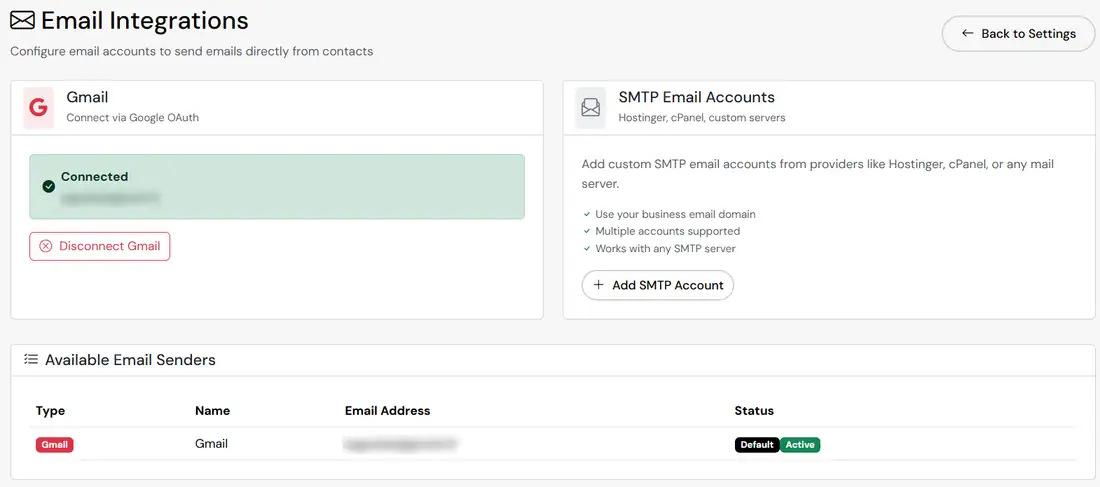
- You return to Email Integrations. The Gmail card now shows Connected and your Gmail address appears under Available Email Senders.
[VIDEO NEEDED (optional)] 30–60 second screen recording of the whole flow, from the Integrations tab to the Connected state, without sound.
What you can do after connecting
- Send emails to contacts without leaving the CRM.
- See when your emails are opened.
- Use the same Email Integrations page to create email templates and signatures.
Disconnect Gmail
Go to Integrations > Email Integrations > Configure and click Disconnect Gmail in the Gmail card. Emails you already sent stay in the CRM. You can connect Gmail again at any time.
Troubleshooting
The Google sign-in window does not open
Allow pop-ups for Growin CRM in your browser, then click Connect Gmail again.
“Failed to initiate Gmail connection”
Refresh the page and try again. If you use Google Workspace, your Google administrator may block third-party apps. Ask them to allow Growin CRM, or connect your mailbox with SMTP.
The wrong Google account was connected
Disconnect Gmail, sign out of the wrong account in Google, then connect again and choose the right account.
Still need help? Email us at support@growin.lt